Last updated: 2026/5/28
Change display items
On some screens, you can change the display items. You can save customized display items as a "display item set" for your team.
Screens where you can change Display Items and use Display Item Sets
- Post performance
- Post performance post details
- Competitor post performance
Change Display Items
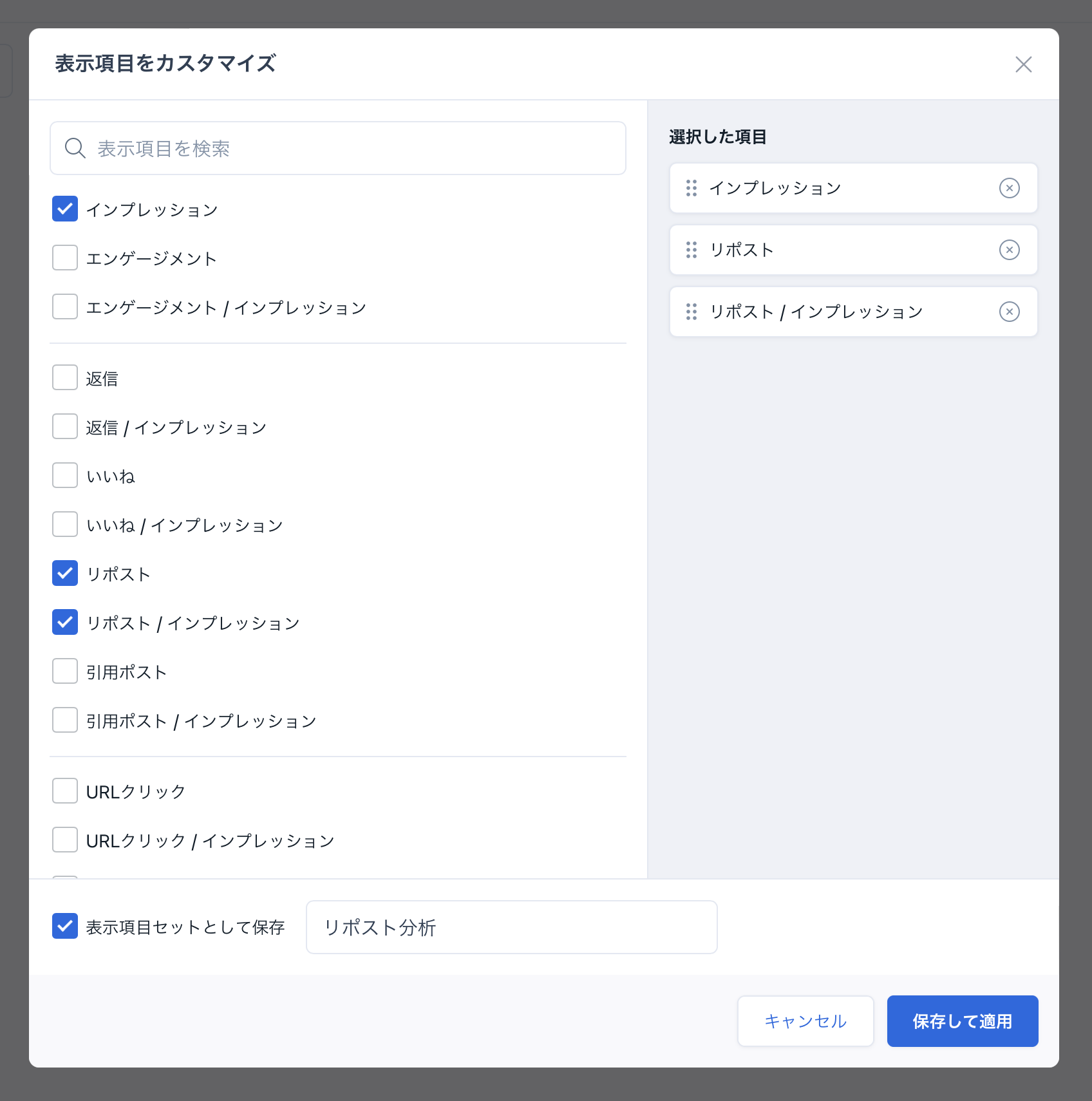
- Open the screen where you want to change the display items.
- Click [Display Items] -> [Customize Display Items].
- Check the display items you want to show in the table. Also, uncheck the items you don't want to show.
- If you want to save it as a display item set, check [Save as display item set] and enter a name for the display item set (Only for team Owners and administrators).
- Click [Apply] (or [Save and Apply]).
Use Display Item Sets
In addition to the display item sets you created, you can use display item sets created by Team members (Owners and administrators).
- Open the screen where you want to change the display items.
- Click [Display Items] and then click the display item set you want to use.
Edit Display Item Sets
Team Owners and administrators can edit display item sets.
- Open the screen where you want to change the display items.
- Click [Display Items] and then click the Edit button (pencil icon) that appears for the display item set you want to edit.
- Check the display items you want to show in the table. Also, uncheck the items you don't want to show. Also, change the name of the display item set if necessary.
- Click [Save and Apply].
Delete Display Item Sets
Team Owners and administrators can delete display item sets.
- Open the screen where you want to change the display items.
- Click [Display Items] at the top of the post list or at the top of the table on the post details page, and then click the Edit button (pencil icon) that appears for the display item set you want to delete.
- Click [Delete Display Item Set].