Analyze posts (Post performance)
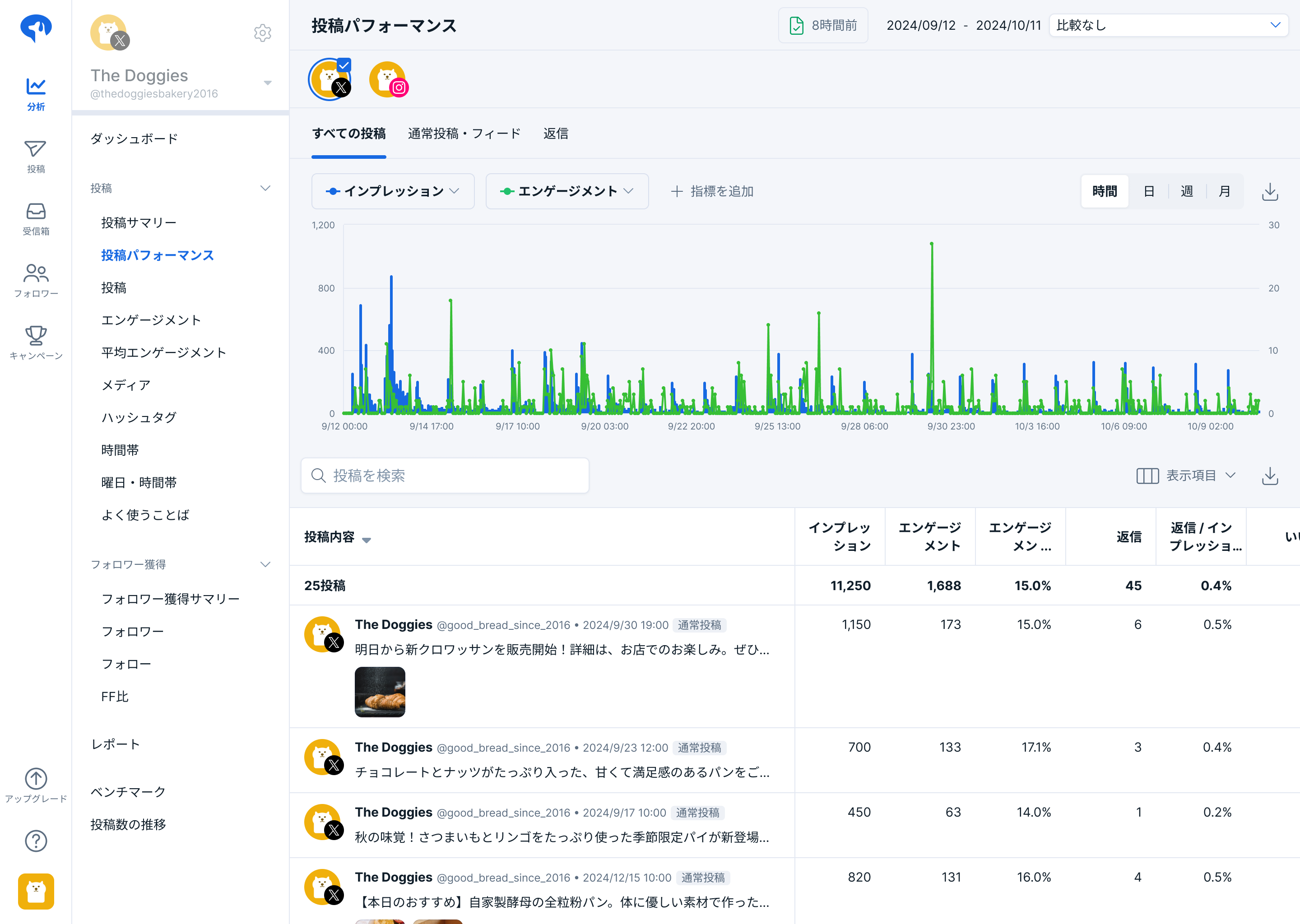
Post Performance allows you to analyze per-post engagement for your social media accounts.
It supports a wide variety of analytical metrics, including impressions, engagements, comments, replies, likes, reposts (retweets), as well as URL clicks, hashtag clicks, detail clicks, and video views. The available metrics vary depending on the social media platform.
Supported Plans
- Business Plan and Enterprise Plan
- All features are available.
- Personal Plan and Professional Plan
- You can view metrics such as per-post engagement, but graph display and period comparison are not available.
- *YouTube is available for all plans.
Supported Social Media Platforms
- X Accounts
- Instagram Accounts
- YouTube Channels
Viewable Posts
You can view all posts acquired by SocialDog, excluding reposts.
Some posts may not be acquired by SocialDog and thus will not be displayed. For details, refer to Data Acquired from Social Media Platforms and Acquisition Timing.
Viewable Metrics
More than 70 rich metrics acquired from each social media platform, such as likes, reposts, impressions, profile link taps, and back/forward navigations in Instagram Stories, are displayed in graphs and tables.
- The metrics that can be displayed vary by social media platform.
- For a list of metrics viewable for each social media platform, please see Analyzable Metrics.
- To view the average value of each engagement rate (items named "〇〇 / Reach" or "〇〇 / Impressions"), displayed at the top of the post list, the currently displayed social media account must support both the numerator and denominator metrics.
Viewing Post Engagement
- Click [Analytics] → [Post Performance].
- Click the social media account you want to analyze.
- Select the period and display unit (monthly, weekly, daily).
- You can view graphs showing the trend of metrics over time and the latest values of metrics for posts within the selected period.
Graph Display Content (X and Instagram)
Displayed Metrics
- Total engagement occurred within each period
- Excluding already acquired data, engagement from periods outside the data collection scope will not be displayed in the graph.
Aggregation Criteria
- Date when impressions/engagements were acquired.
- For example, if a reply was made on July 2nd to a post from July 1st, it will be displayed as a reply on July 2nd.
- Please note that the displayed values may differ from other post analytics features in X. Other post analytics features in X aggregate based on the post date. For example, if a reply was made on July 2nd to a post from July 1st, it will be displayed as a reply on July 1st.
- For more information on acquired data and update timing, please refer to Data Acquired from Social Media Platforms and Acquisition Timing.
Post List Display Content
Displayed Metrics
- Latest value for each post
- Data outside the selected period may be included.
Displayed Posts
- Posts made during the selected period
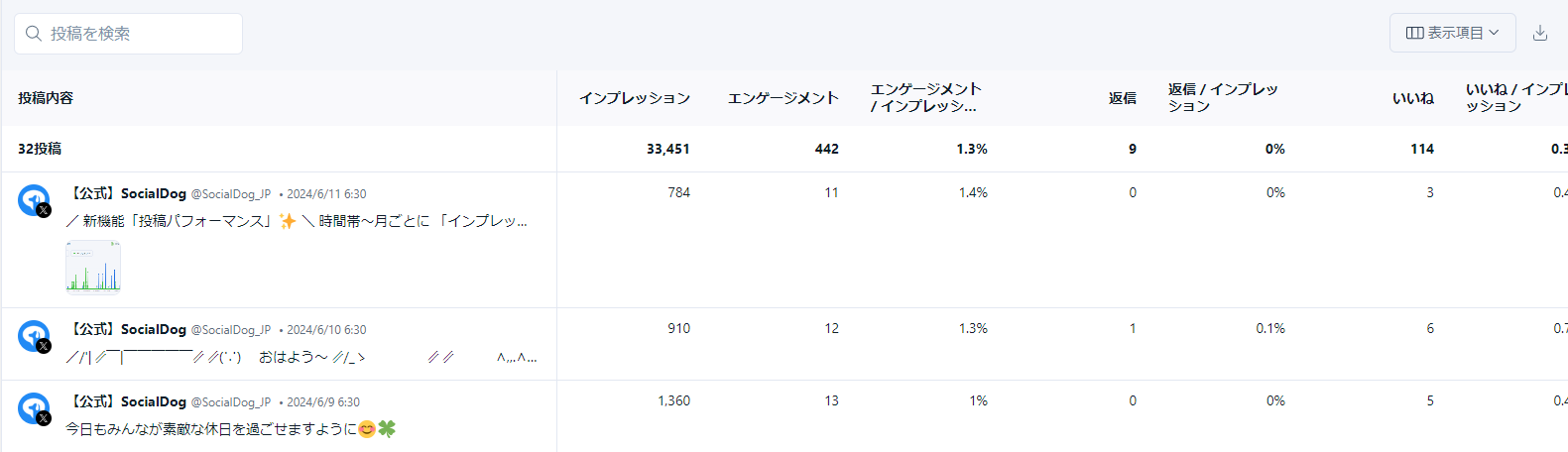
Viewing Engagement for Specific Posts Only (X and Instagram)
You can view the trend of impressions and engagement for posts over time (hourly, daily, weekly, monthly). This is useful for analyzing initial performance.
- Open [Analytics] → [Post Performance], and display the post you want to check.
- In the post list, click the post you want to check.
- On the "Post Details" screen, you can view the trend of metrics for each post.
Post Details Display Content
The values displayed at the top of each graph on the "Post Details" screen represent the engagement acquired within the selected period (not the latest value).
- Clicking [Raw Value / Impressions] in the upper right corner of the screen allows you to view the engagement rate (each value divided by the number of impressions) in a graph. For Instagram, clicking [Raw Value / Reach] allows you to view the engagement rate (each value divided by the number of reaches) in a graph.
- You can view metrics in a table format at the bottom of the post details page.
- X Posts
- By default, the displayed data represents the total data for 2 weeks from the post date.
- Instagram Posts
- Monthly display is not supported.
- For Stories, only data from the first 24 hours after posting can be viewed.
Retrieving Historical Metric Data for Specific Posts (X Only)
If you set the analysis period displayed on the post details screen to a period later than 2 weeks, you can retrieve missing data for that period.
- Missing data can be retrieved retrospectively for up to 1 year from the current time. If data has already been acquired, periods older than 1 year can also be selected.
- The acquired data will also be reflected in graphs and on the post list screen.
- Missing data must be retrieved individually for each post from the post details screen.
Switching Analyzed Social Media Accounts
- On the Post Performance screen, click the account icon at the top to switch the account to be displayed.
Displaying Data from Multiple Social Media Accounts Simultaneously
You can display data from multiple social media accounts simultaneously. In graphs, the total engagement of all checked social media accounts will be displayed. In the post list, all posts from all checked social media accounts will be displayed.
- Hover your mouse cursor over the social media account icon.
- Checking the [checkbox] will display information from multiple social media accounts simultaneously.
Filtering by Post Type
You can filter posts by type by clicking "All Posts" or similar options at the top.
- Click one of the following at the top: [All Posts], [Regular Posts / Feed Posts], or [Replies].
- Only posts of the selected type will be displayed.
Filterable Post Types
- All Posts: Displays all posts.
- Regular Posts / Feed Posts: Displays posts other than replies for X, and feed posts only for Instagram.
- Replies: Displays only reply posts (X only).
- Reels: Displays only Reel posts (Instagram only).
- Stories: Displays only Story posts (Instagram only).
Changing Analytics Items Displayed in Graphs
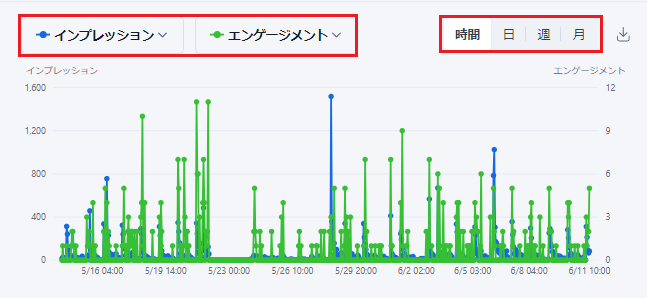
You can change the analytics items displayed in the graph using the dropdown menu, and display up to two analytics items simultaneously.
Comparing Two Periods (X and Instagram)
You can compare data from the selected period (e.g., May 10-20, 2025) with data from a comparison period, displayed side-by-side in graphs and tables.
The comparison period can be selected from the following:
- Previous Period: The immediately preceding period of the same duration as the selected period (e.g., April 30 - May 9, 2025)
- Same Period Last Month: The same date range as the selected period, one month prior (e.g., April 10-20, 2025)
- Same Period Last Year: The same date range as the selected period, one year prior (e.g., May 10-20, 2024)
Post Tags
You can tag posts to categorize them and compare the performance of different tags.
Creating Post Tags
Users who are team administrators and have the role of "Administrator" or "Editor" for the social media account can create post tags.
- Click [Analytics] → [Post Performance].
- In the post list, click the tag icon displayed for each post.
- When the dropdown menu appears, click "+Create New Tag".
- Enter the tag name in the text field within the dialog and click "Create".
- The created tag will be automatically associated with the respective post.
Editing Post Tags
Team administrators can edit the names of post tags.
- In the post list, click the tag icon displayed for each post.
- Click the pencil icon next to the tag you want to edit.
- Change the tag name in the text field within the dialog and click [Save].
Deleting Post Tags
Users who are team administrators and have the role of "Administrator" or "Editor" for the social media account can delete post tags.
- In the post list, click the tag icon displayed for each post.
- Click the pencil icon next to the tag you want to delete.
- Click [Delete] within the dialog, and then click [Delete] in the confirmation dialog.
Associating Tags with Posts
Users who are team administrators or general users and have the role of "Administrator" or "Editor" for the social media account can associate tags with posts.
- In the post list, click the tag icon displayed for each post.
- Check the checkbox next to a tag in the dropdown list to associate the tag with the post.
Unchecking the checkbox will disassociate the tag.
Analyzing Performance by Post Tag
Users who are team administrators or general users and have the role of "Administrator", "Editor", or "Viewer" for the social media account can view tag-specific performance.
By switching the dimension of the post list to "Post Tags", you can compare and analyze tag-specific performance in a table.
Performing Actions on Posts (X Only)
For X posts, clicking the "..." button displayed in each row allows you to add another post (reply), create a repost (retweet), or create a quote post (quote tweet).