Verify entrants and determine winners
This explains how to confirm applicants, conduct lotteries, and manage winners.
Regardless of contest type, the operations for confirming applicants, conducting lotteries, managing winners, and sending DMs are common.
About the Applicant List
You can manage applicants for Contests as "Applicants", "Winners", and "Candidate Winners".
- Applicants
- These are the applicants for the Contests.
- Includes Winners and Candidate Winners.
- Applicants will be in one of the following states: "Winner", "Candidate Winner", or "Neither Winner nor Candidate Winner".
- Winners
- These are the Winners.
- Candidate Winners
- Candidate Winners can be managed in case a Winner declines or cannot be contacted.
Opening the Applicant List
You can view a list of users who meet the application requirements (you can also view it while applications are being accepted).
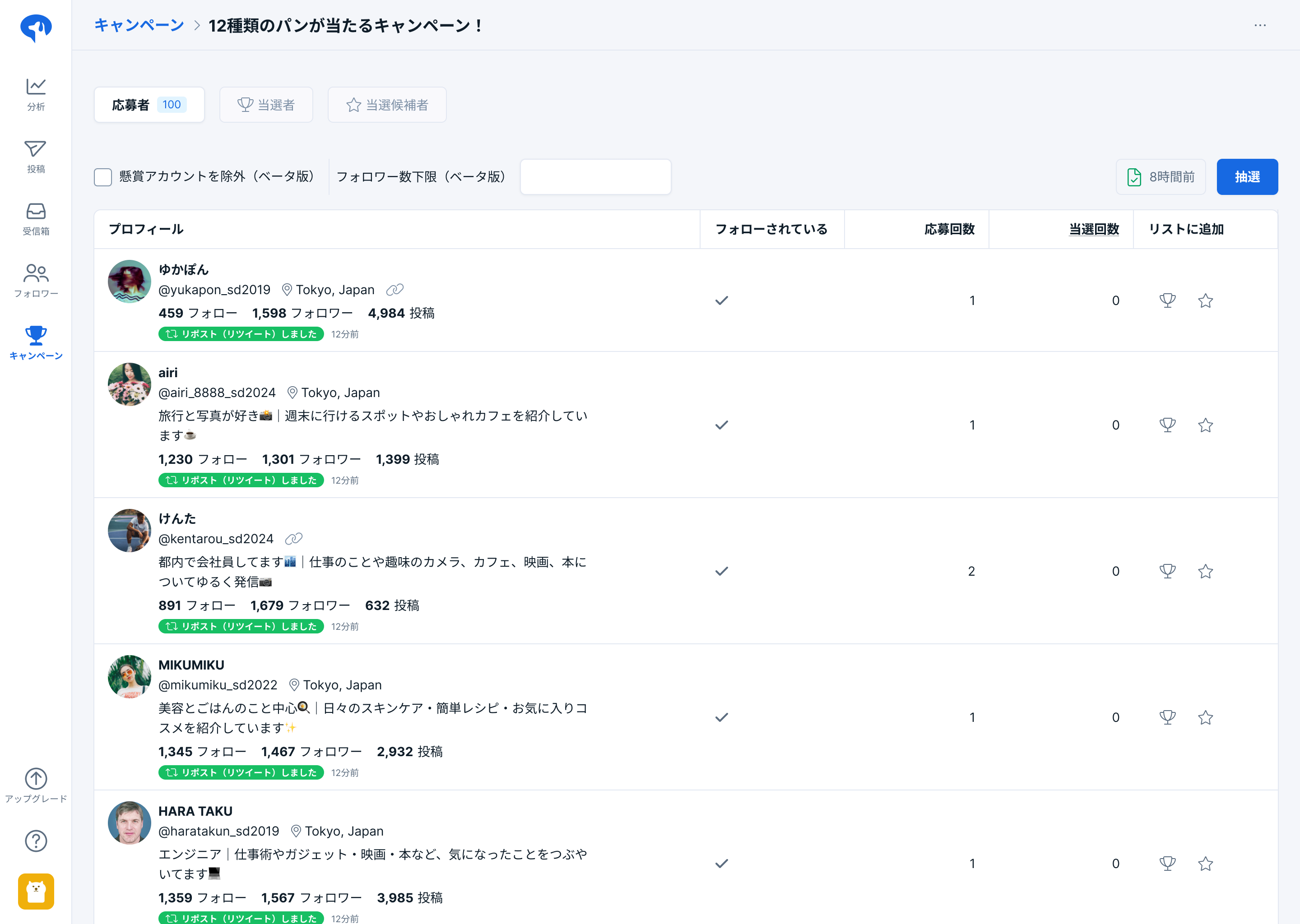
- From the menu, click [Contests].
- Click [Applicants] in the row of the target Contest.
- It takes some time for the data to be reflected in the applicant list after a user follows/unfollows.
- Users who reposted are not deleted from the applicant list even if they later undo their reposts.
Download the Applicant List as CSV
In the upper right corner of the applicant list screen, click [CSV Download].
Conducting the Lottery
After the application period ends, you can conduct a lottery to randomly determine "Winners" and "Candidate Winners".
- On the applicant list screen, click [Lottery].
- Enter the number of "Winners" and "Candidate Winners".
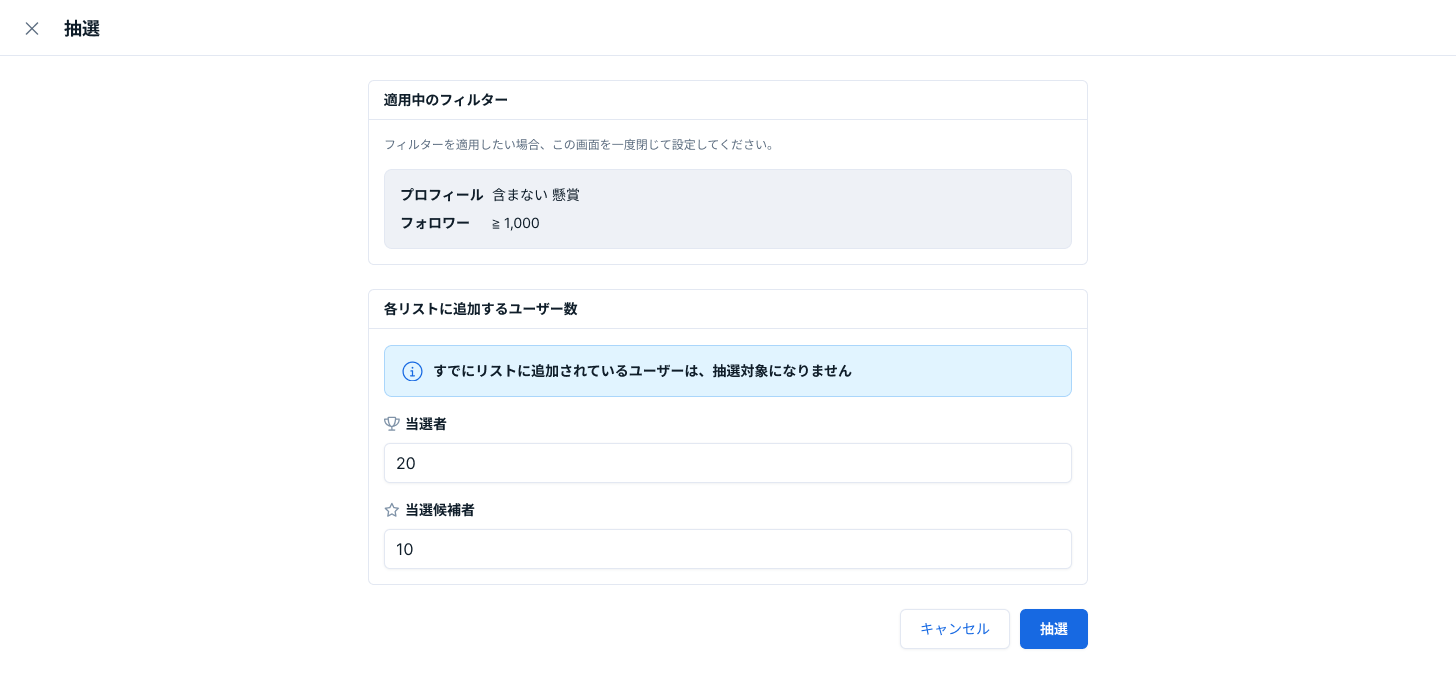
- Click [Lottery].
- The specified number of users will become "Winners" or "Candidate Winners".
Users Excluded from the Lottery
Users who have already been selected as Winners/Candidate Winners will be excluded from the lottery.
Manually Adding, Excluding, or Promoting Winners
Without using the lottery function, you can manually select individual winners or exclude winners/candidate winners.
- For the target Contest, open "Winners" or "Candidate Winners".
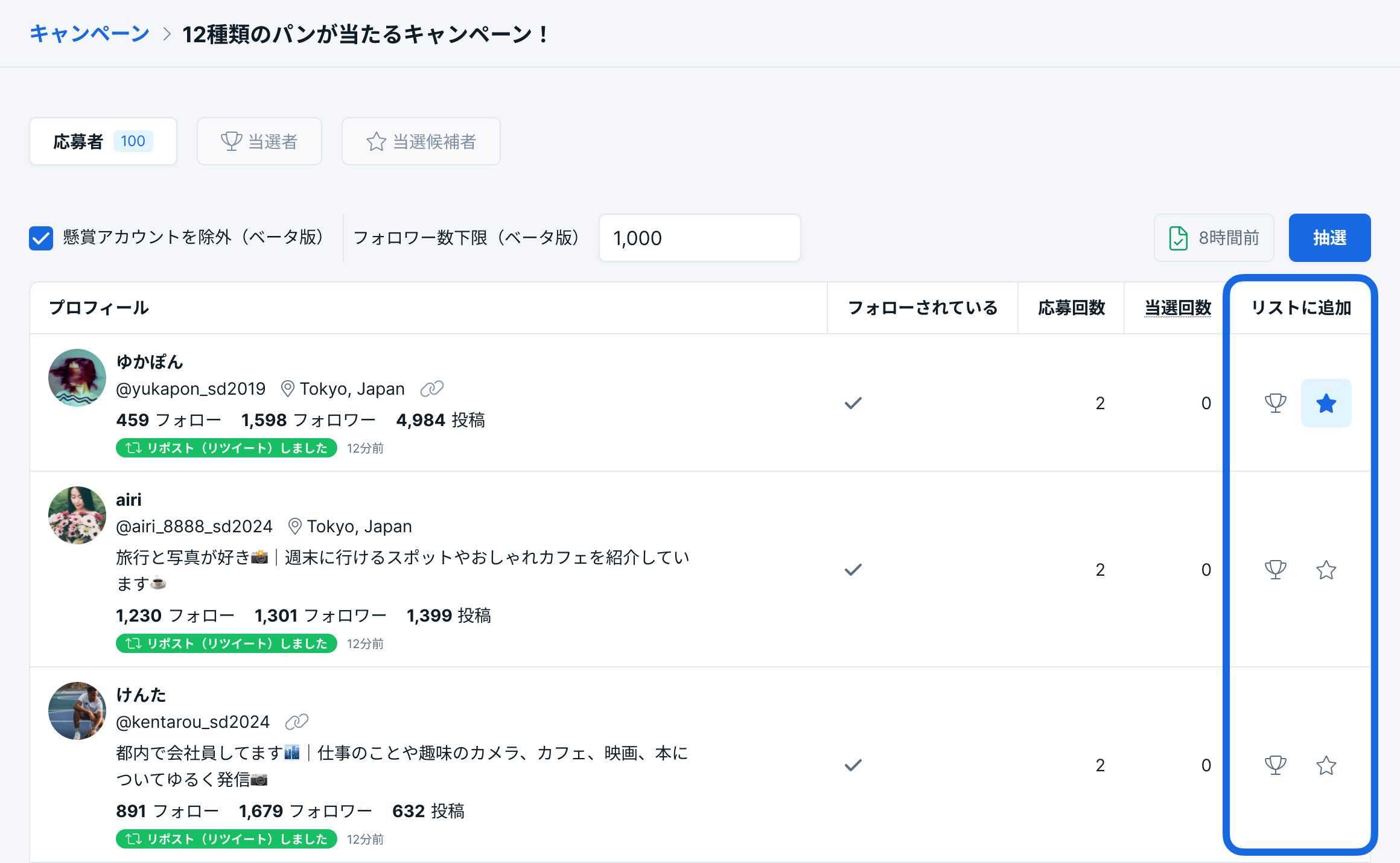
- Operate using the buttons in the "Add to List" column.
- Manually Registering or Promoting Winners: "Add to Winners" (Trophy)
- Excluding Winners/Candidate Winners: "Delete from Winners" (Trophy) / "Delete from Candidate Winners" (Star)