Create a CSV file for bulk import in Excel
This section describes how to create a CSV file for Bulk import using a spreadsheet application such as Excel.
Create a CSV File for Text-Only Posts
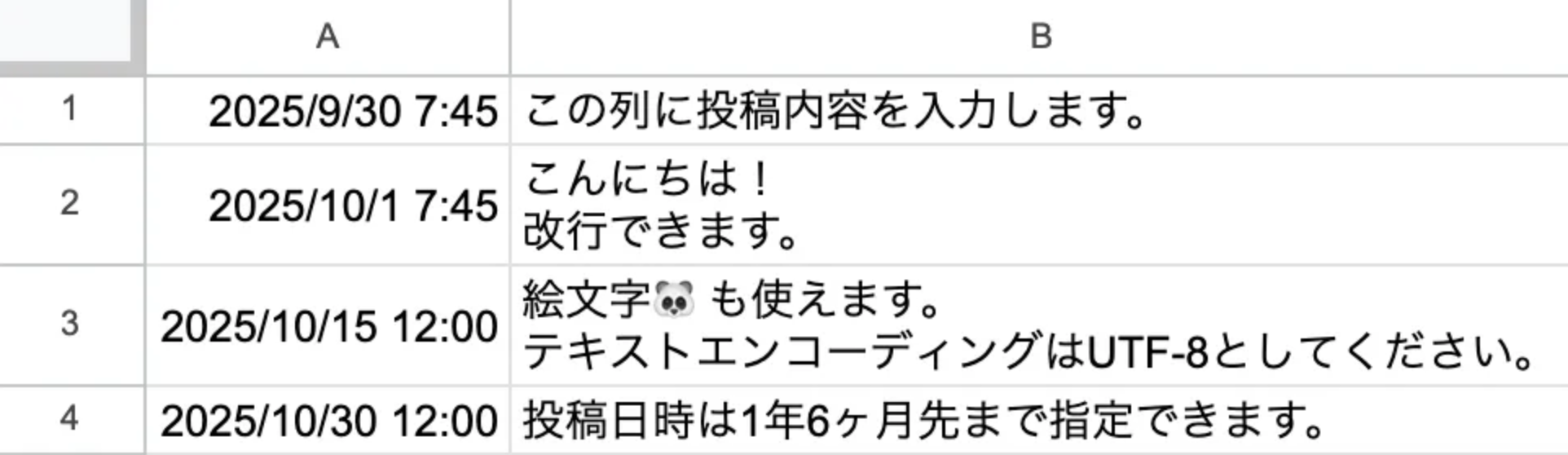
- Open the downloaded sample file or select [File] -> [New] to create a new file in a spreadsheet application such as Excel.
- Enter the desired date and time for the Post in column A in "YYYY/MM/DD HH:MM" format. The Post date and time can be specified up to 1 year and 6 months in advance.
- Enter the Post content in column B. Line breaks within cells will also be reflected in the Post.
- Repeat steps 2 and 3 for the number of Posts you want to schedule.
- Select [File] -> [Save As] to export the CSV file.
- Select [CSV UTF-8 (Comma delimited)] from [Save as type]. For details on how to Save, please refer to How to Save in UTF-8 or Shift_JIS.
- Enter the file name and Save it.
Create a CSV file to Bulk import Posts with Media
With a single CSV file, you can Batch Add scheduled Posts and Drafts, including those with Media and text-only Posts.
To Bulk import Posts with Media, you need to upload images and videos to the Media Library in advance. Please refer to How to upload Media (images and videos) to the Media Library for details on how to upload.
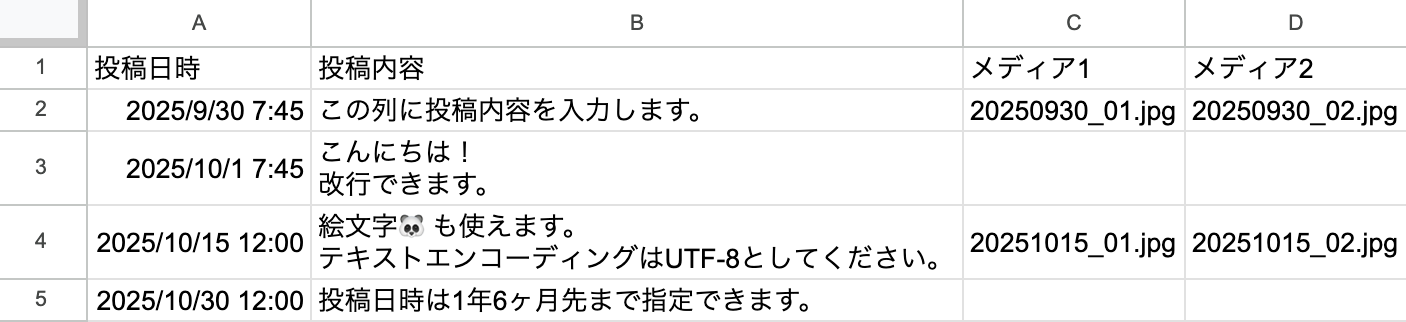
- Open the downloaded sample file or select [File] -> [New] to create a new file in a spreadsheet application such as Excel.
- Create a CSV file according to the format described in Input Item Details below.
- Select [File] -> [Save As] to export the CSV file.
- Select [CSV UTF-8 (Comma delimited)] from [Save as type]. For details on how to Save, please refer to How to Save in UTF-8 or Shift_JIS.
- Enter the file name and Save it.
Input Item Details
| Item Name | Example Input | Required/Optional | Notes |
| Post Date and Time | 2025/08/21 10:00 | Required | Enter the date and time in "YYYY/MM/DD HH:MM" format. The Post date and time can be specified up to 1 year and 6 months in advance. |
| Post Content | This is a sample post. | Required | Line breaks within cells will also be reflected in the Post. |
| Media 1 | 20250821_01.jpg | Optional | Enter the file name of the Media uploaded to SocialDog's Media Library. The file name must include the extension (.jpg/.png). |
| Media 2 | 20250821_02.jpg | Optional | Up to 20 Media files can be specified per Post (up to 4 for X (Twitter), and up to 10 for Instagram and Facebook). Please enter only the necessary number of Media header rows. |
| Media 3 | Optional | If left blank, it will be a text-only Post. | |
| Media 4 | 20250821_04.jpg | Optional | |
| Media 5 | 20250821_05.jpg | Optional | |
| Media 6 | 20250821_06.jpg | Optional | |
| Media 7 | 20250821_07.jpg | Optional | |
| Media 8 | 20250821_08.jpg | Optional | |
| Media 9 | 20250821_09.jpg | Optional | |
| Media 10 | 20250821_10.jpg | Optional |
For information on how to obtain Media file names, please refer to How to upload Media (images and videos) to the Media Library.
How to Set CSV File Dates to SocialDog Compatible Format
Perform the following operations to set the date format included in the CSV file to a SocialDog compatible format.
- Select the cell for which you want to Change the date settings and click on Format Cells.
- Enter "yyyy/mm/dd hh:mm" in the format field and click OK.
How to Save in UTF-8 or Shift_JIS
- Select [File] -> [Export] -> [Change File Type] -> [CSV (Comma delimited)], then click [Save As].
- If the file contains emojis, Change [Save as type] to [CSV UTF-8 (Comma delimited) (*.csv)].
- Enter an arbitrary file name and click [Save].
If the file contains emojis, select UTF-8.
About In-Cell Line Breaks
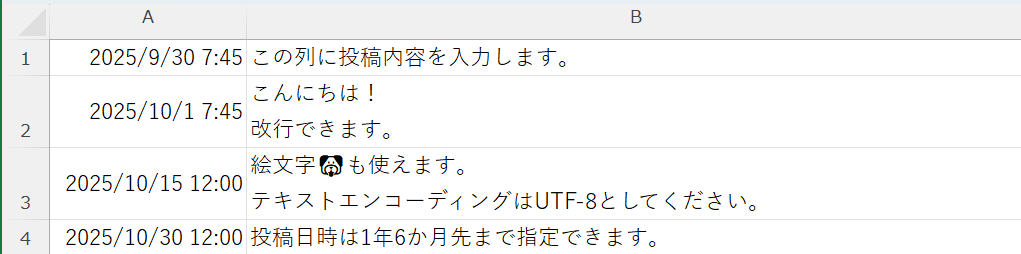
When editing directly in a text editor, line breaks must be enclosed in double quotes (""). When editing in Excel, in-cell line breaks are automatically converted during CSV output, so there is no need to enclose them in double quotes.
About Functions such as LEN
Functions are converted to text when exported to a CSV file.
The Post content to be registered will be displayed on the confirmation screen after uploading, so please confirm it before registering.