Last updated: 2026/5/28
Use the reservation slot.
Posting Time Slots allow you to easily schedule posts at pre-registered days and times. This document explains the procedures for adding, configuring, and deleting Posting Time Slots.
What are Posting Time Slots?
When you add a Posting Time Slot, it will appear in your Scheduled Posts and Calendar view at a fixed day and time each week, eliminating the need to manually specify the date and time for each post.
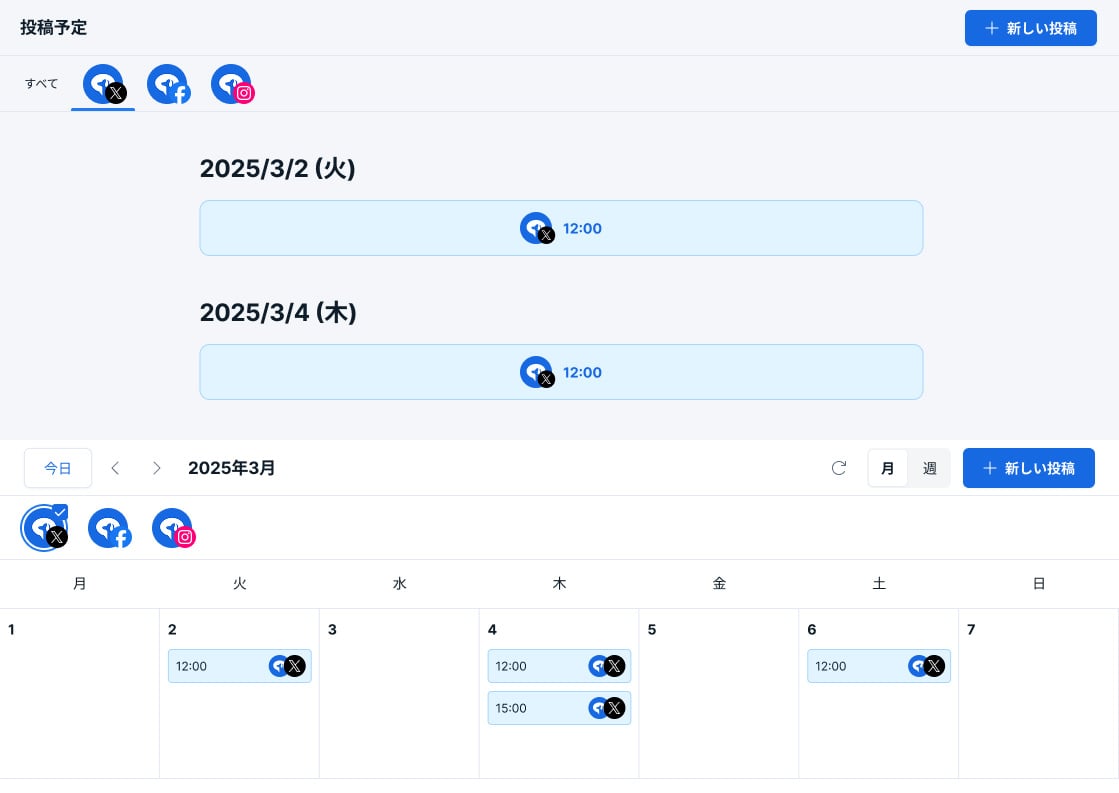
Posting Time Slots only register the day and time. Post content must be added to the Posting Time Slot each time.
Adding a Posting Time Slot
- Navigate to [Posts] → [Posting Time Slots].
- Click [Add Posting Time Slot].
- Select the desired day and time, then click [Add]. To set multiple Posting Time Slots, select the day and time and click [Add] for each one.
Adding Posts to a Posting Time Slot
Posts added to Posting Time Slots will be automatically published sequentially at the designated time. You can schedule posts up to one year in advance.
Adding a Post to an Empty Posting Time Slot
- Click [Posts] and select [Scheduled Posts].
- Click [New Draft] and enter your post content.
- Click [▼] and select [Add to Posting Time Slot].
- Click [Add to Posting Time Slot].
Adding a Post to the Top of a Posting Time Slot
- Click [Posts] and select [Scheduled Posts].
- Click [New Draft] and enter your post content.
- Click [▼] and select [Add to Top of Posting Time Slot].
- Click [Add to Top of Posting Time Slot].
Deleting Posting Time Slots
Deleting Individually
- Click [Posts] and select [Posting Time Slots].
- Click the [×] icon next to the Posting Time Slot you wish to delete.
Deleting All
- Click [Posts] and select [Posting Time Slots].
- Click [Delete All Posting Time Slots].
- Review the confirmation message and click [Delete].