Manage Team settings
With Teams, you can collaboratively manage multiple users and multiple Social profiles.
What are Teams
Teams are units of SocialDog Accounts, Social profiles, and plans that utilize SocialDog's features.
Users who are Team members can collaboratively manage the Social profiles within the team.
When you register for SocialDog, a "Default Team" is created for each user.
You can belong to multiple teams with the same SocialDog Account. For example, by creating multiple teams separated by client, you can manage plans, Social profiles, and Team members independently for a single SocialDog Account.
What's Included in a Team
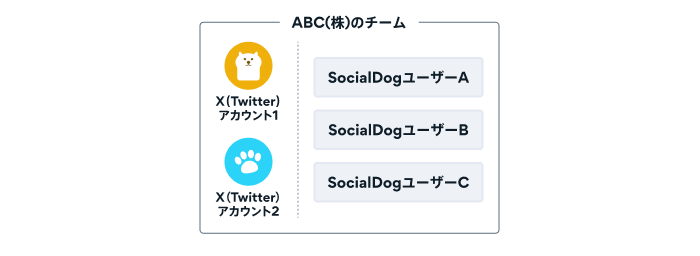
- Team members (SocialDog Accounts)
- SocialDog Accounts can be Team members of multiple teams.
- Social profiles
- Social profiles cannot be linked to multiple teams.
- Plans and Payment methods
- Team members can utilize the features of the team's plan for the team's Social profiles.
"Teams" is the successor to the "Managed Users" feature. For information on migrating from the "Managed Users" feature, please check this announcement.
Create a Team
- Click the team icon in the bottom left of the screen.
- Click Create Team.
Alternatively, click [Switch Teams] → Create Team. - Enter the Team name for the team you want to create, and click [Next].
- Select the plan you wish to subscribe to for the team you are creating.
- Follow the on-screen instructions to create the team.
- For details on using paid plans, please refer to Using Paid Plans.
If you belong to a team with a Free plan, you cannot select a Free plan for the new team you are creating.
Delete this team
The Owner of the team can delete the team by following these steps.
- Click the icon in the bottom left of the screen.
- Click Team settings.
- Click [Delete this team].
- A dialog will appear asking if you are sure you want to delete the team. Click [Delete].
Teams with a paid plan cannot be deleted until they are changed to a free plan.
If you need to delete the team immediately, please contact us via the support form.
Change Team name
- Access Team settings.
- The currently configured items are displayed. Click [Time zone].
- Change the value and click [Change].
Change Time zone
- Access Team settings.
- The currently configured items are displayed. Click [Time zone].
- Change the value and click [Change].
To set to Japan Standard Time, set it to (GMT+09:00)Asia/Tokyo.
To align with X Analytics, set it to (GMT+00:00)UTC.
When a team is created, the Time zone is automatically set to the browser's Time zone by default for the Owner.
Time zone changes are reflected immediately. When you refresh your browser, the data displayed on the screen, including past data, will be re-displayed with the new Time zone.
After changing the Time zone, the dates and times of existing scheduled posts will be displayed in the new Time zone.