Last updated: 2026/9/25
Use X (Twitter) conveniently with SocialDog's browser extension
The SocialDog browser extension allows you to schedule posts or schedule Reposts directly from the X (Twitter) screen.
Operating Environment
- Compatible browsers
- Google Chrome (PC version)
- Compatible SNS
- X (Twitter) only
Install the Extension
- Open SocialDog Extension - Chrome Web Store.
- Click the [Add to Chrome] button to install the extension.
Schedule Posts with SocialDog from X (Twitter)
- Open X (Twitter) Home.
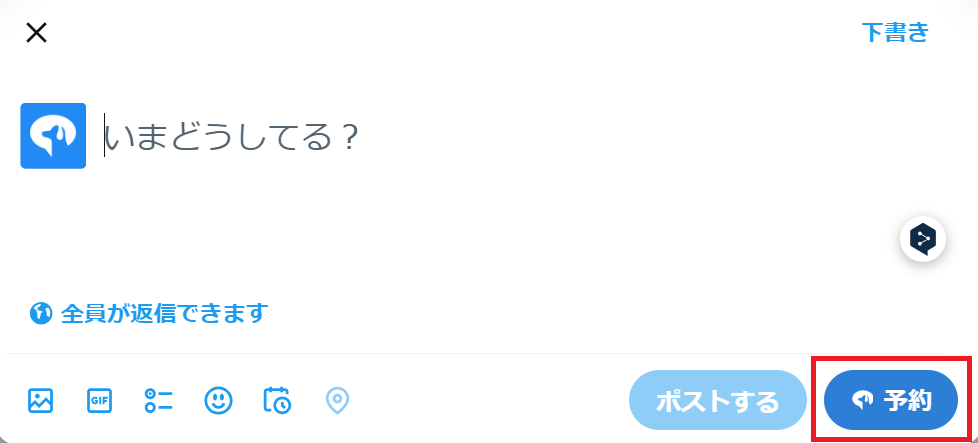
- In the post form, the [Post with SocialDog] button will appear.
- After entering your text, clicking the [Post with SocialDog] button allows you to directly schedule your post with SocialDog.
- Information other than text (e.g., images, videos) must be added in SocialDog's post creation screen.
Schedule Replies/Reposts from X (Twitter)
You can schedule replies, Reposts, or quote posts for any X post.
- On X (Twitter), open the post you want to schedule a reply, Repost, or quote post for.
- Click the button below the post.
- To schedule a reply:
- Click the [SocialDog icon] below the post
- To schedule a Repost or quote post:
- Click the Repost icon, then click the [Repost with SocialDog] button
- To schedule a reply:

For more details on scheduled replies, see Scheduling Replies, and for more details on scheduled Reposts, see Scheduling Reposts.
Schedule Posts for Links from Viewed Web Pages with SocialDog
You can easily schedule posts for any web page with SocialDog.
- On any web page, right-click and click [Share Page with SocialDog].
- SocialDog's post creation screen will open, and the URL will be inserted into the text input field. Edit the text as needed and schedule your post.
Schedule Posts for Text from Viewed Web Pages with SocialDog
You can easily schedule posts for text from any web page with SocialDog.
- On any web page, select the text you want to post.
- Right-click and click [Post ... with SocialDog].
- SocialDog's post creation screen will open, and the selected text will be inserted into the text input field. Edit the text as needed and schedule your post.